
SIMPLE SHORTCUTS & SECRETS
Photo Editing Made Easy
For busy wedding & portrait photographers so you can close that laptop sooner.
3 Photo Editing Tasks You Can Do On Import
Have you ever bought something you already had?
I’m guilty of doing this with groceries. 🛒
“Oh, we already had another bottle of salad dressing? Oops. Oh well, we’ll use it…eventually.”
What if, just like with grocery shopping, you were doing extra work in photo editing that you didn’t need to do?
Let me share some photo editing tasks you might not need to do yourself anymore if you use Lightroom Classic.
Your Weekly Photo Editing Tip
Wouldn’t you LOVE it if Lightroom could do some of your photo editing tasks?
Yeah, me too!
Okay, there are a few things Lightroom can take off your plate:
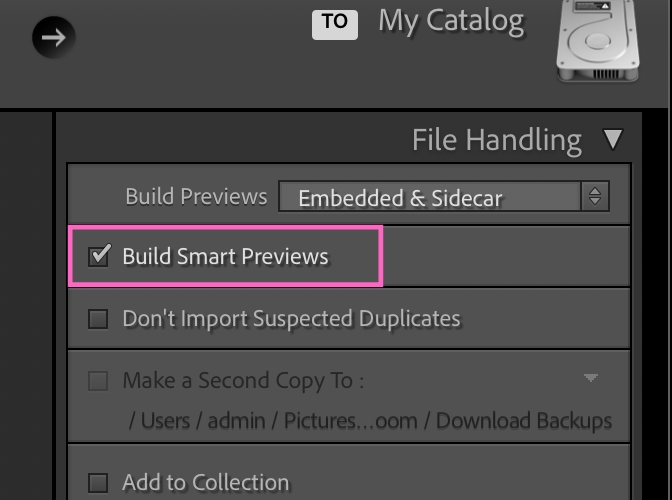
#1-Build Smart Previews
If you work with a photo editor, they might ask you to send Smart Previews instead of RAW files.
You can select a box on Import (like in the picture below) so you don’t have to remember to do it yourself anymore. Yay!
From the Import screen, go to "File Handling" in the right panel to find this option.
#2-Add to a Collection
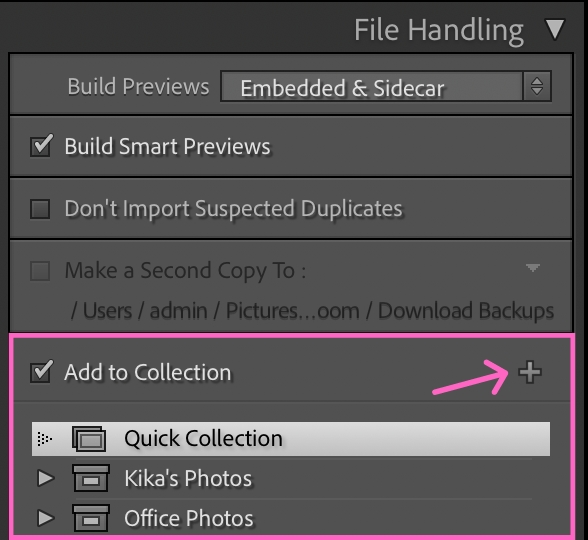
Do you use collections to organize your photos? If you do, you'll love this one!
Did you know you can tell Lightroom to put your photos in a collection when you import them? You can add them to an existing collection or make a new one in the import window.
Super-cool, right?
#3-Apply a Preset
I’ve mentioned this before, but it’s worth saying again…you can automatically apply a preset when you import your photos.
This will save you tons of time if you use the same preset for all your photos. You don’t have to do that step anymore!
Go to Develop Settings under "Apply During Import" in the right panel to choose this option. Press "none" to access your list of presets.
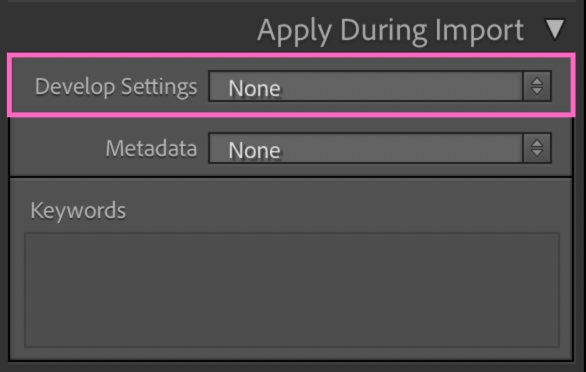
Lightroom makes this process easy in two ways:
Lightroom will “remember” your choices the next time you import into the same catalog, which is a real time-saver.
You can also save your import settings as a preset to use anytime you import.
Saving Your Own Import Preset
It’s easy to save your own import preset. Follow the steps below:
Step 1
Choose what you want to happen on import.
Step 2
At the bottom of your Import screen, you’ll see a black bar that says “import preset” on the left and “none” on the right. Press “none” and choose “Save Current Settings as New Preset.”
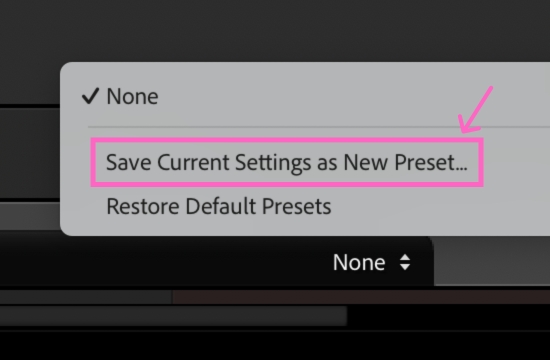
Step 3
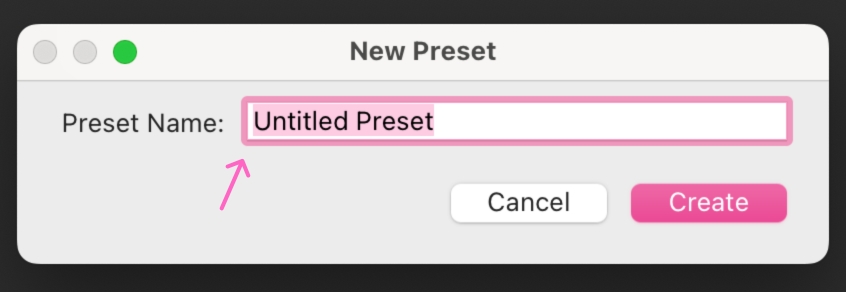
Name your preset and tap “create.” You can pick that preset from the “Import Preset” bar at the bottom going forward.
Are you using any of these tips? Which one will you try?
Happy editing,
Erika

Check Out the Newest Posts
Hey there photographer!

I'm Erika. I'm a private photo editor for wedding photographers and photo editing educator. Think of me as your techy friend who loves figuring out the shortcuts in Lightroom Classic so you don't have to.


Blog Categories


(Affiliate Code)


Online private photo editor based in Cleveland, Tennessee, serving wedding photographers worldwide.
Services
Color Correction
Style Matching
Lightroom Classic Retouching
Image Culling

Copyright © 2020-2026 Erika Swafford. All Rights Reserved
Created with Systeme.io