
SIMPLE SHORTCUTS & SECRETS
Photo Editing Made Easy
For busy wedding & portrait photographers so you can close that laptop sooner.
Is your crop messing up the Lightroom AI?
December is busy-busy so doing a quick drive-by with this tip I figured out that helps get better results from the generative AI in our beloved Lightroom Classic.

Lightroom’s generative AI is great and I’ve noticed that sometimes it gives me really wonky results when I don’t make my selection properly. AI is so finicky!
Say you want to remove an object that is near the edge of the image. You make your selection but the generative AI doesn’t quite want to remove the whole thing. Very frustrating, right?
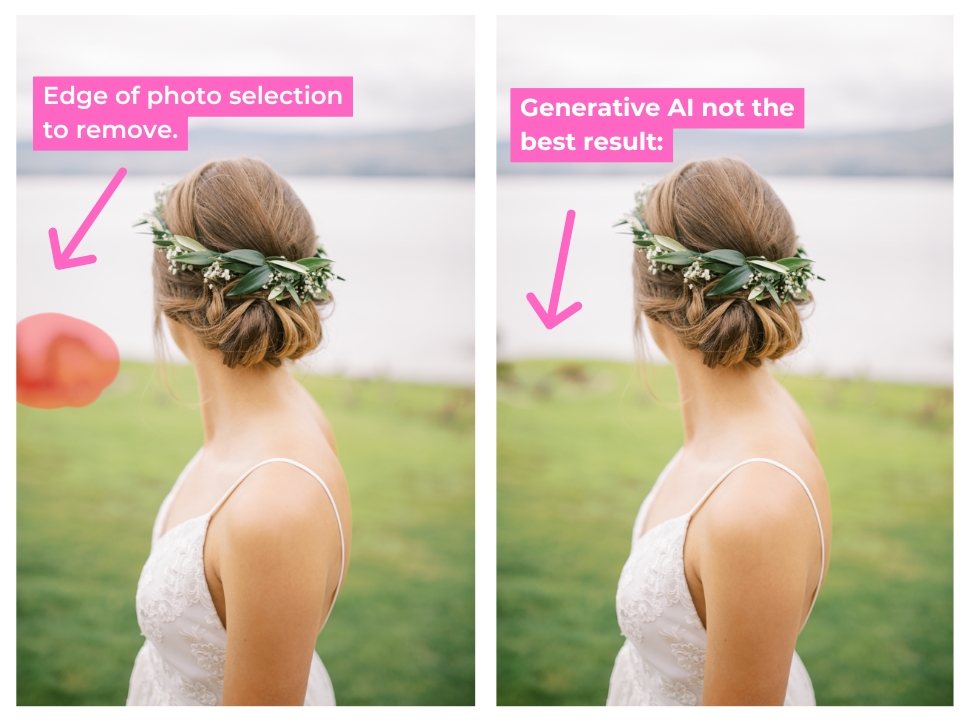
Here’s the trick: Check your crop.
Why the crop?
Here’s the thing. The AI doesn’t see the crop on your image. It thinks you’re only trying to remove part of the object since it see the whole image. And it's trying it's hardest to make the hidden part that’s cropped still work with the part you selected to remove. 🤦🏻♀️
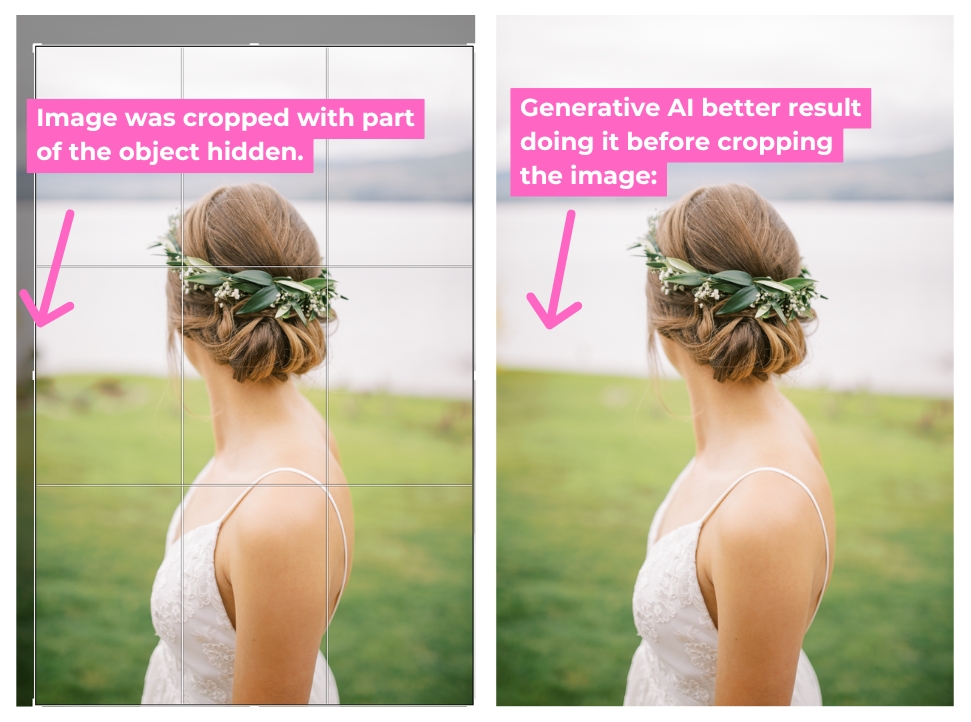
What I’ve found works best is to use the generative AI to remove any objects that will be at the edge of the photo BEFORE cropping.
Or, if you already cropped the image, reset the crop so you can select the entire object you want to remove. 🙌
Happy editing,
Erika

Check Out the Newest Posts
Hey there photographer!

I'm Erika. I'm a private photo editor for wedding photographers and photo editing educator. Think of me as your techy friend who loves figuring out the shortcuts in Lightroom Classic so you don't have to.


Blog Categories


(Affiliate Code)


Online private photo editor based in Cleveland, Tennessee, serving wedding photographers worldwide.
Services
Color Correction
Style Matching
Lightroom Classic Retouching
Image Culling

Copyright © 2020-2026 Erika Swafford. All Rights Reserved
Created with Systeme.io