
SIMPLE SHORTCUTS & SECRETS
Photo Editing Made Easy
For busy wedding & portrait photographers so you can close that laptop sooner.
Using Sneak Peeks as Reference Images: A Simple Editing Workflow Trick

Want to outsource your photo editing but worry it would be too complicated?
Maybe you’ve heard horror stories of edits coming back that don’t match your style, requiring endless back-and-forth adjustments or re-editing the whole thing yourself. Yikes! No one wants that.
The secret to outsourcing your editing—or even maintaining consistency when you edit your own photos—is to use reference images (sometimes called anchor images).
And the cool thing is that editing with reference images is already part of your workflow: sneak peeks!

You see, your sneak peeks capture your intended editing style, making them the perfect Lightroom reference images for outsourcing.
By using them strategically, you can ensure a seamless photo editing workflow for outsourcing editing—for you and the photo editor you work with.
Let’s talk about how to use sneak peeks in Lightroom Classic to simplify your editing process, whether you're working with a photo editor or editing your photos yourself.
Why Sneak Peeks Are the Perfect Reference Images
If you’re like most photographers, the first thing you do after a wedding or portrait session is pull a handful of favorites to edit as sneak peeks. These are the images you share on social media and send to your clients while they wait for their full gallery.
But beyond giving your clients a taste of what’s to come, these sneak peeks hold incredible power—they show your desired final edit style.
That’s why they’re the perfect reference images when it comes to maintaining editing consistency, whether you’re outsourcing your editing or just streamlining your own workflow.
How to Use Sneak Peeks as Reference Images in Lightroom Classic
So how do you actually use sneak peeks as reference images in Lightroom? Here’s a simple workflow:
Step 1:
Label Your Sneak Peeks – Once you’ve edited your sneak peek images, mark them in Lightroom Classic. You can use color labels or star ratings. This makes them easy to identify when you’re going through a catalog. (If you plan on outsourcing with a photo editor, ask them if they have a preference.)
Step 2:
Sync from your Sneak Peaks – In Lightroom’s Develop module, you can use the Sync button to copy over the adjustments you’ve made on your sneak peeks to unedited images. This saves you so much time! (This is what a photo editor would do.)
Step 3:
Use the Reference View – In the Develop module, use the Reference View (shortcut: Shift + R) to place your sneak peek edit next to an unedited image. This allows you to visually compare and match your edits for consistency.
Step 4:
Share Them When Outsourcing – If you’re working with an editor, include your sneak peek images along with your unedited images. This gives your editor a clear guide for color, contrast, and overall style.
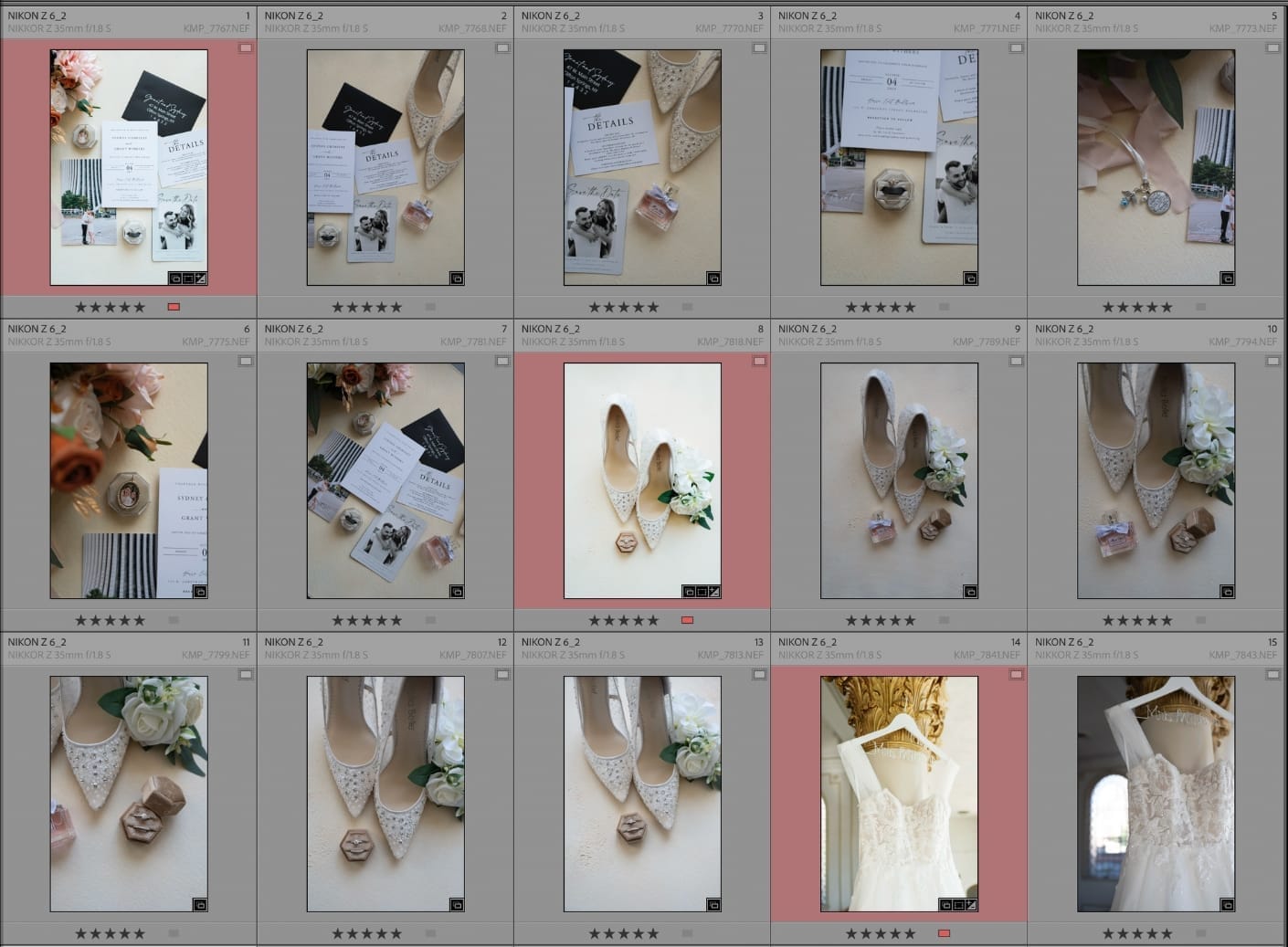
Sneak peeks labeled to use as reference images.
Photos by Kaleigh Moore Photography
How This Helps with Editing Consistency
Using sneak peeks as reference images isn’t just for outsourcing—it’s a fantastic way to refine your own editing workflow. Here’s why:
Ensures consistency – Whether you’re batch editing yourself or working with an editor, your sneak peeks serve as a visual roadmap for keeping edits cohesive.
Reduces editing time – When you have a clear reference, there’s less you’ll need to figure out editing-wise with the other images in that same setting.
Saves time in the long run – You’re already editing sneak peeks anyway—why not use them to make the rest of your workflow more efficient? It’s a no-brainer.
How to Implement This in Your Workflow
This is the best part—you can start using this method immediately. Here’s how:
Make it a habit to label your sneak peeks in Lightroom.
When batch editing, use Reference View to match your edits to your sneak peek images.
If you’re outsourcing, send your sneak peeks with your unedited images to guide your editor.
Enjoy the time saved and the improved consistency in your final galleries!
If you already edit sneak peeks, you’re one step ahead! Try using them as reference images and see how they streamline your workflow—whether you’re outsourcing or not. You’re saving time and improving the quality of your edits. Win, win!
If you are interested in working with a photo editor like me, get your hands on my pricing guide here.
Happy editing,
Erika

Check Out the Newest Posts
Hey there photographer!

I'm Erika. I'm a private photo editor for wedding photographers and photo editing educator. Think of me as your techy friend who loves figuring out the shortcuts in Lightroom Classic so you don't have to.


Blog Categories


(Affiliate Code)


Online private photo editor based in Cleveland, Tennessee, serving wedding photographers worldwide.
Services
Color Correction
Style Matching
Lightroom Classic Retouching
Image Culling

Copyright © 2020-2026 Erika Swafford. All Rights Reserved
Created with Systeme.io